

Request types
The Access Requests tab shows every kind of access request in one queue:
The number of pending requests appears in a red badge next to the Access Requests navigation link.
A user only sees requests they’re listed as an Approver for. By default, a request not processed within 30 minutes expires — change this in Access Request Expiration Time on the System Settings tab.
Process a request
1
Find the request
Open the Access Requests tab. Toggle Display all requests (top right) to also see past requests (Approved, Denied, Expired). Click the expand icon on a request to see its details.
2
Approve or deny
Click Approve or Deny, optionally enter a message, and click Confirm.
If the Pseudonymizer feature and a de-anonymization password are enabled, enter that password in the pop-up as well.
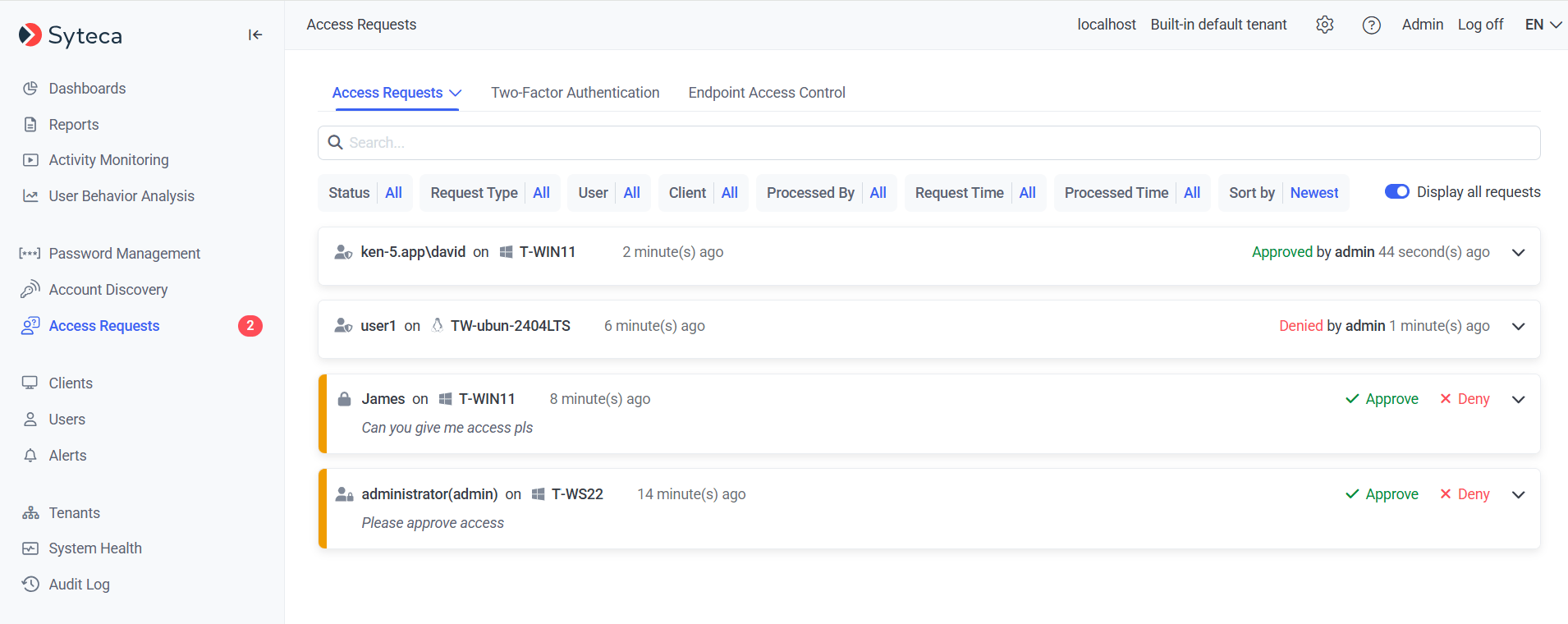
The Access Requests tab, showing pending requests to approve or deny.
Related
Endpoint Access Control
Require approval before users log in to Client computers.
Two-factor authentication
Manage TOTP-based 2FA for Client logins.