

Before you start
You need an activated license serial key that includes the Password Management application and PAM seat licenses.Configuration order
1
Confirm your license
Make sure your serial key includes the Password Management application and PAM seat licenses.
2
Configure an LDAP target (optional)
To use Active Directory account secrets, first configure an LDAP target.
3
Assign PAM seat licenses
Assign PAM seat licenses to users on the Users page. This gives them access to the Password Management and Account Discovery pages, and to the Connection Managers.
4
Configure a Connection Manager
Choose how users will connect:
- Web Connection Manager — used directly from the Management Tool, with Launch in browser (agentless) and Launch locally options.
- Desktop Connection Manager — used on a Windows Client computer (for example, a jump server).
5
Add secrets
Add secrets manually, or use Account Discovery to find and onboard accounts automatically.
6
Connect
Users with PAM seat licenses and the right permissions can now connect to privileged accounts using the secrets.
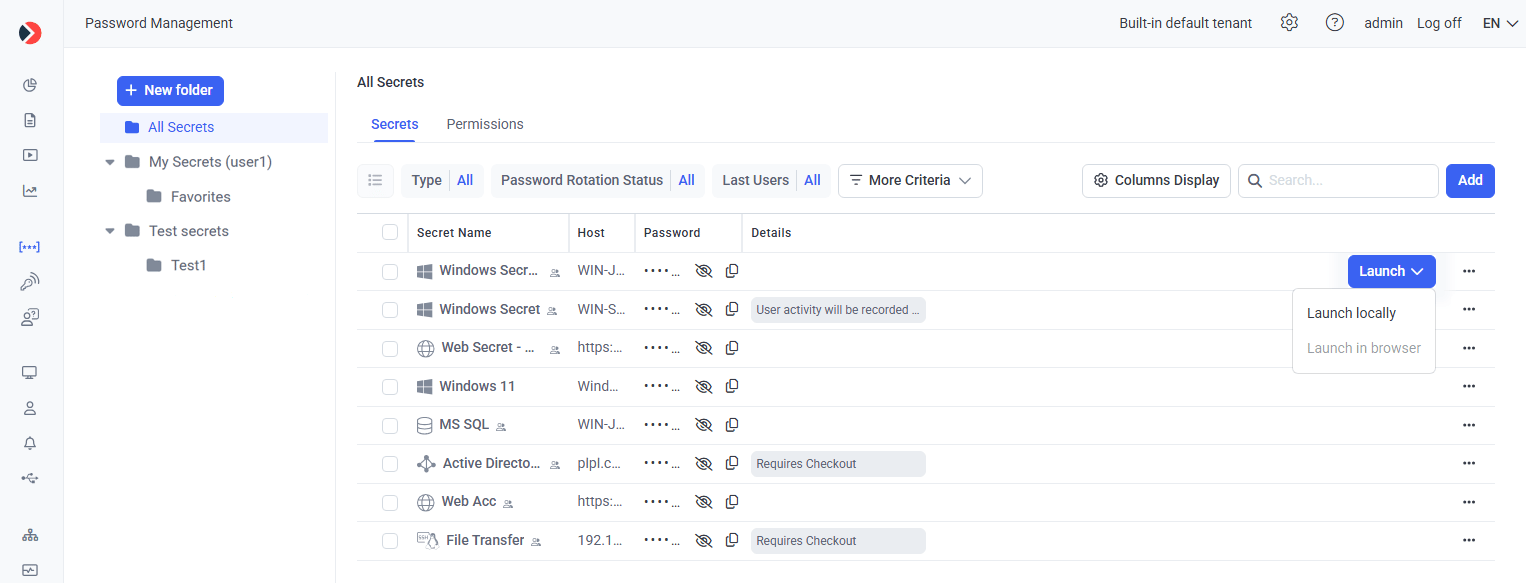
The Password Management page, ready for use after configuration.
Related
Web Connection Manager
Configure agentless and local launch from the Management Tool.
Desktop Connection Manager
Configure a Windows Client or jump server.
Add a secret
Create your first secret.
Account Discovery
Find and onboard accounts automatically.