

A secret can only be deleted by a user with the Owner Role Type permissions for that secret.
Delete one or more secrets
1
Sign in to the Management Tool
Log in with an account that has Owner permissions for the secrets you want to delete.
2
Open Password Management
Click the Password Management tab in the left navigation.
3
Select the secrets
Select the checkboxes to the left of each secret you want to delete. You can select one or several.
4
Delete the secrets
Once at least one is selected, the bulk action bar appears, where we need to click on the Delete icon.
5
Confirm the deletion
In the confirmation window that opens, click Delete.
The selected secret or secrets are removed from the Secrets list.
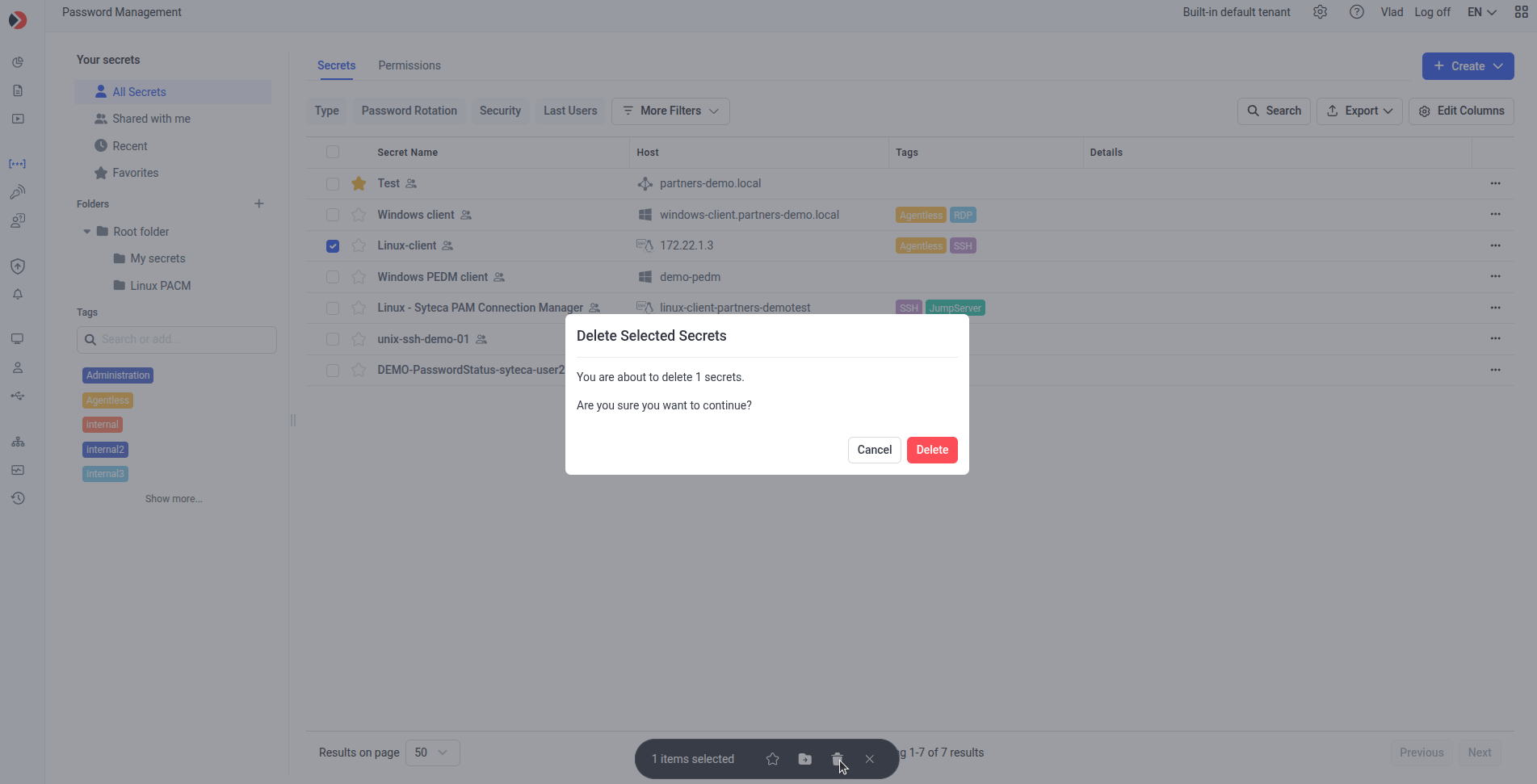
Selecting secrets and opening the Bulk Action menu on the Password Management page.
Next steps
Add a secret
Create and configure a new secret from scratch.
Edit a secret
Change a secret’s properties or rotate its password on demand.