

As a root user, the built-in default admin user has Owner Role Type permissions for every secret, and can therefore edit any secret added by other users.
Open a secret for editing
1
Sign in to the Management Tool
Log in with an account that has Owner or Editor permissions for the secret.
2
Open Password Management
Click Password Management in the left navigation.
3
Open the secret
On the Secrets tab, click anywhere on the secret to open it in Edit mode.
4
Make your changes
Edit the secret across the available tabs.
5
Save
Click Save to apply your changes.
In Edit mode, the additional options from the per-secret actions menu appear in the panel’s upper-right corner (except Edit itself, since you’re already there).
A tab unavailable to you (insufficient permissions) or unsupported for this secret type appears grayed out. Hovering it shows: “The feature is not supported for this secret type.”
The Edit Secret panel
The panel has these tabs and buttons:- Details
- Automation
- Security
- Just In Time Access
- Password Policy
- Permission
- Dependencies
- Launch, Cancel, and Save buttons
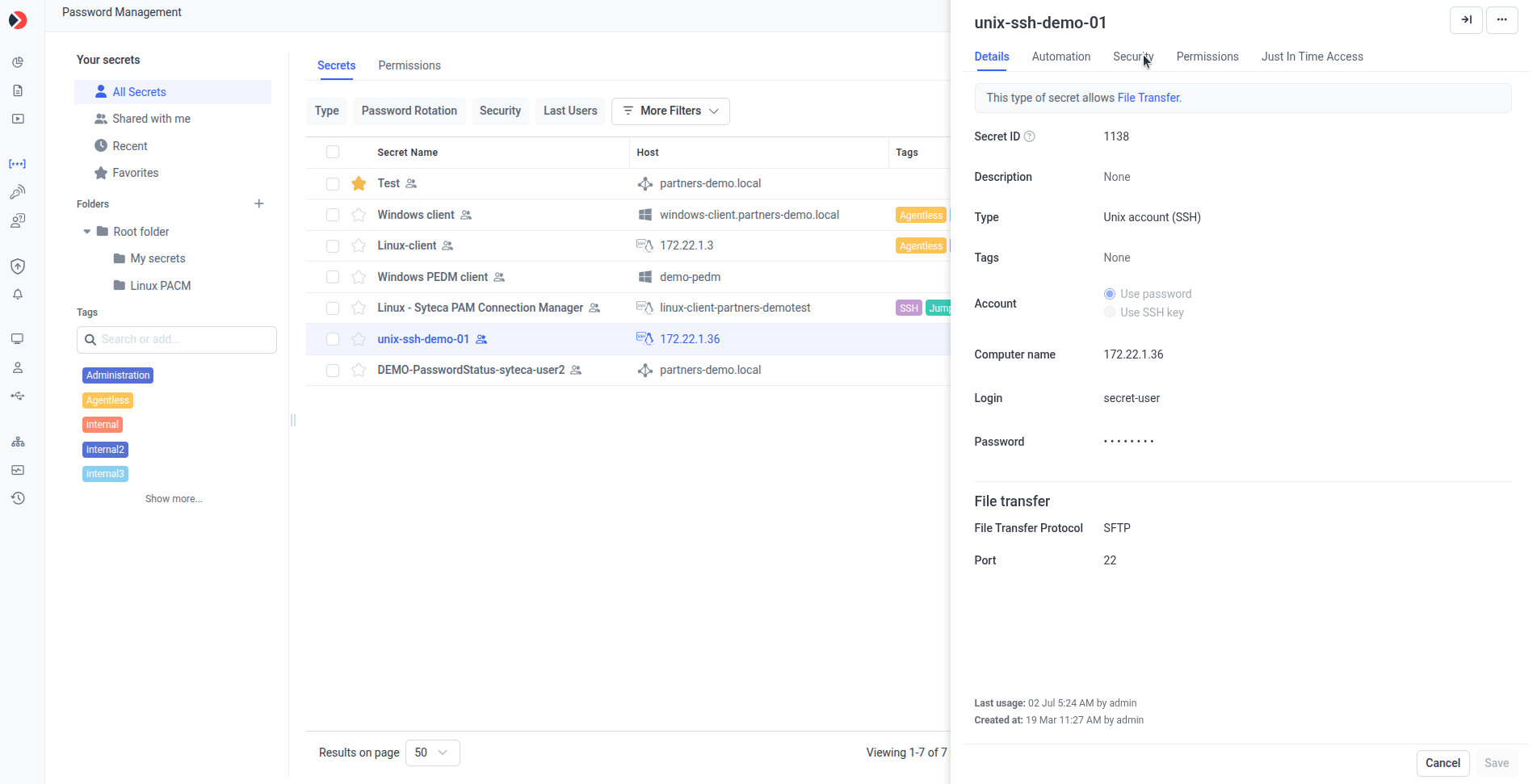
The Edit Secret panel and its tabs.
Details tab
General information about the secret, and the ability to launch it:
For Active Directory account, Windows account, and Unix account (SSH) secrets, the Details tab also has a File Transfer section, where the available protocol (SCP, SFTP, or FTP) is configured — see Transfer files with WinSCP.
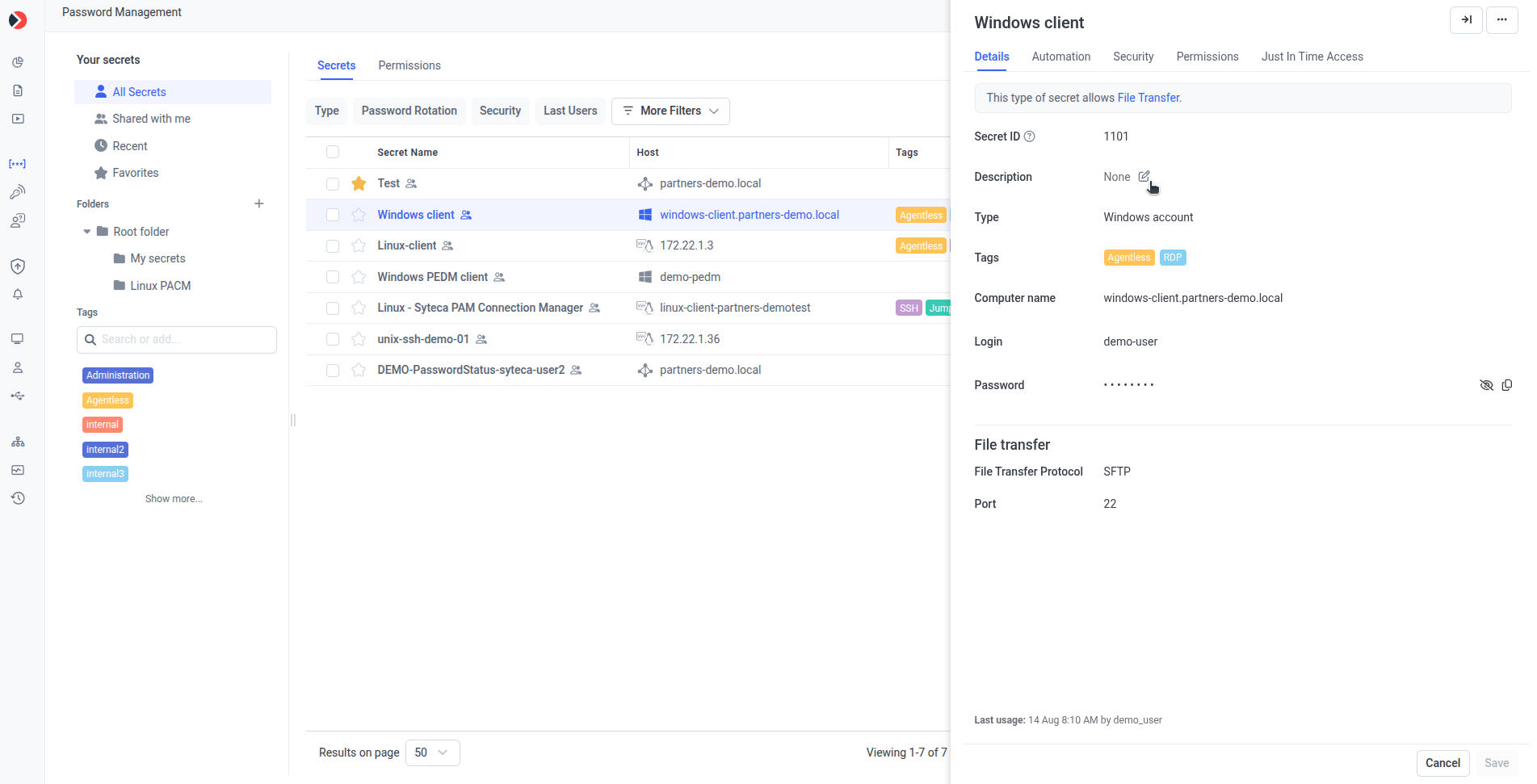
The Details tab.
Automation, Security, Just In Time Access, Password Policy, Permission, and Dependencies tabs
These tabs keep the same settings and functionality as when adding a secret — see that page for full descriptions of each setting. Editing adds a few extras: Automation tab:- Rotate Now — if scheduled password rotation is enabled and configured, click to rotate the account’s password (or SSH key) immediately. Last password rotation shows once rotation is enabled.
- Force Check In — if Requires check out is enabled and the secret is currently checked out, click to check the password back in immediately, forcibly disconnecting the current user.
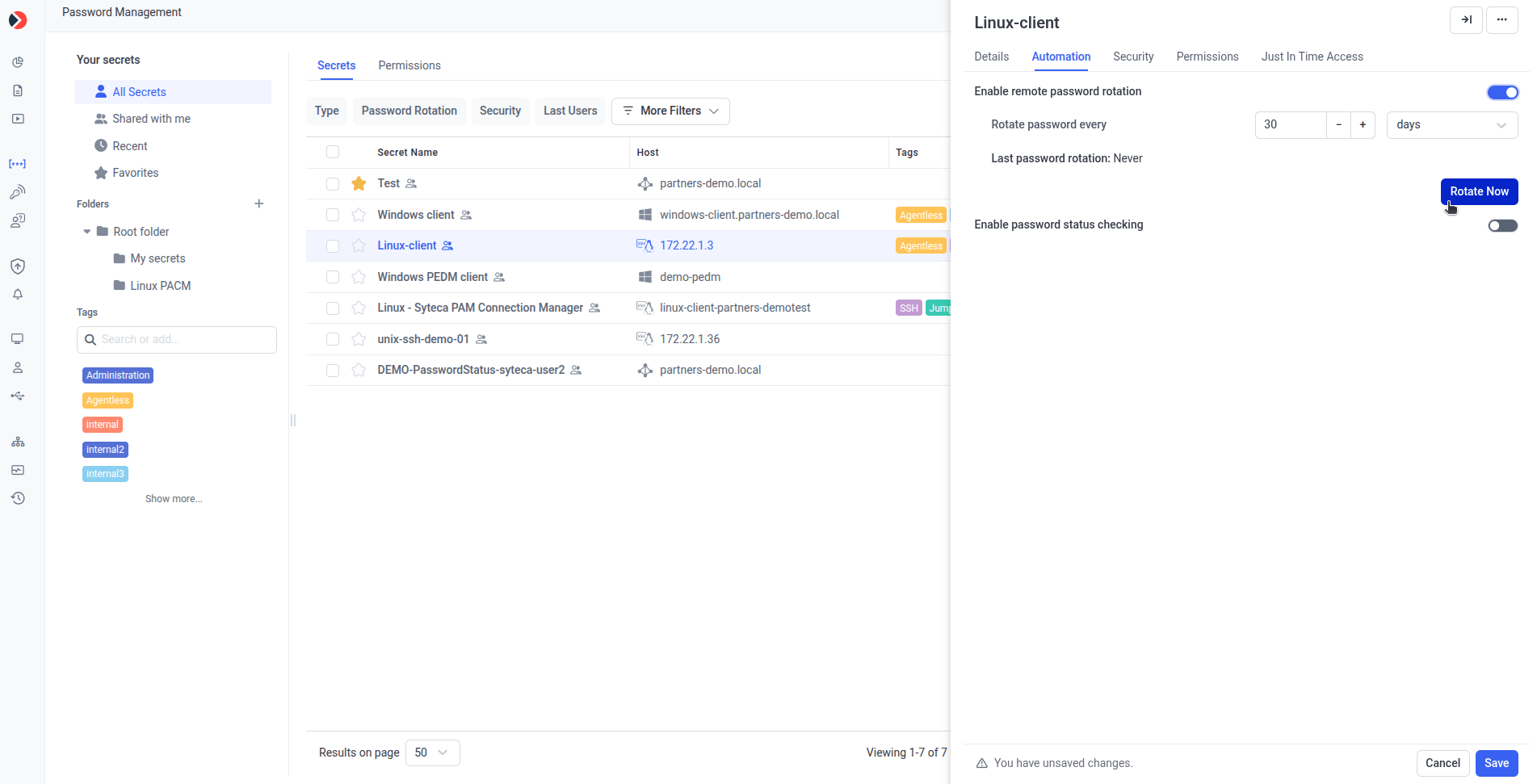
Rotate Now on the Automation tab.
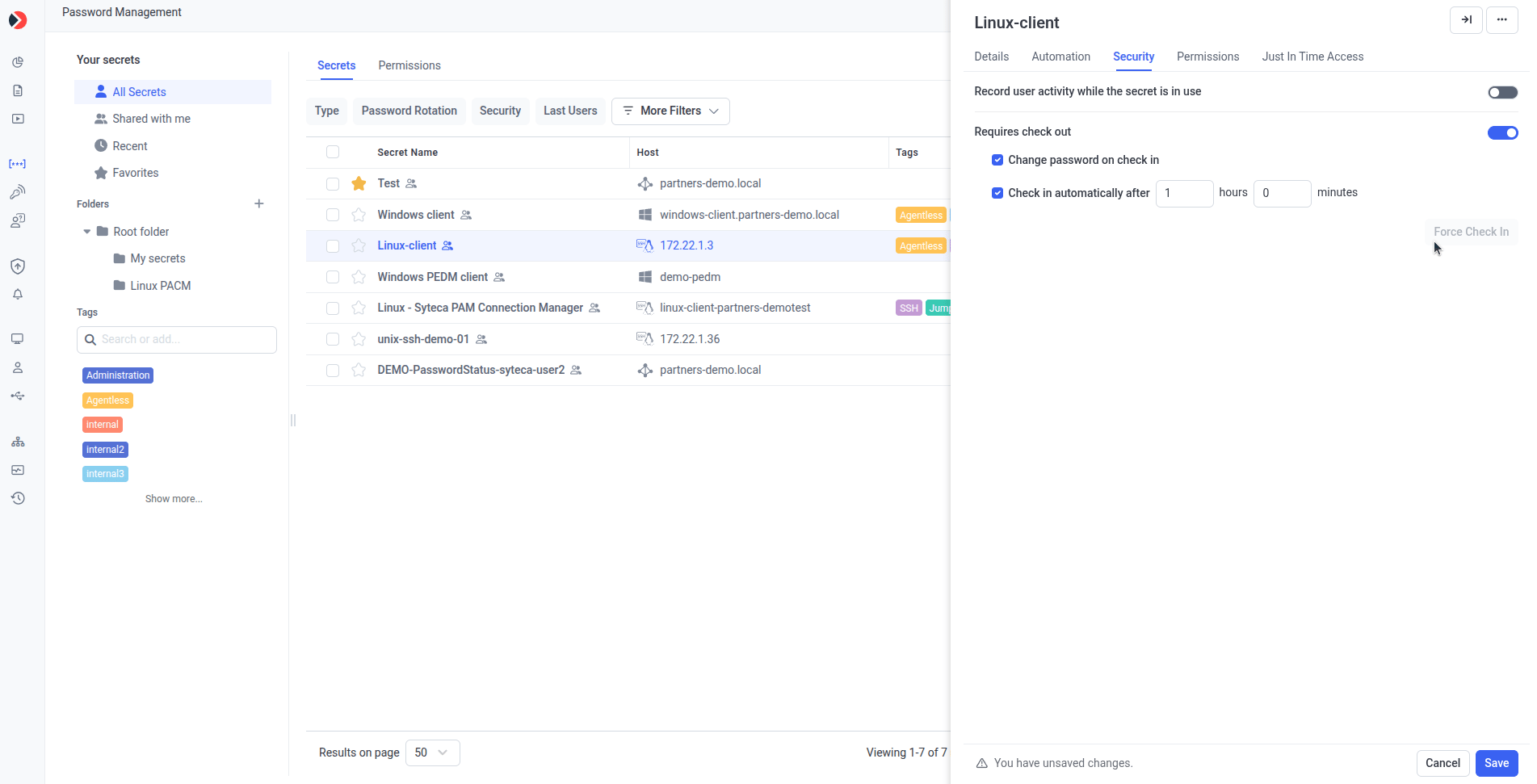
Force Check In on the Security tab.
Reset a secret to folder settings
Click Reset to Folder Settings on any tab to return that tab’s settings from Custom back to the parent folder’s settings.When a secret inherits settings from its folder, the first change you make shows a warning message. Once dismissed, further changes on that secret don’t show it again.
Launch a secret
Launch a secret from the grid (hover it and click Launch) or from the Edit Secret / Secret View panel. If it has more than one launch type (browser or local), a drop-down of launch options appears.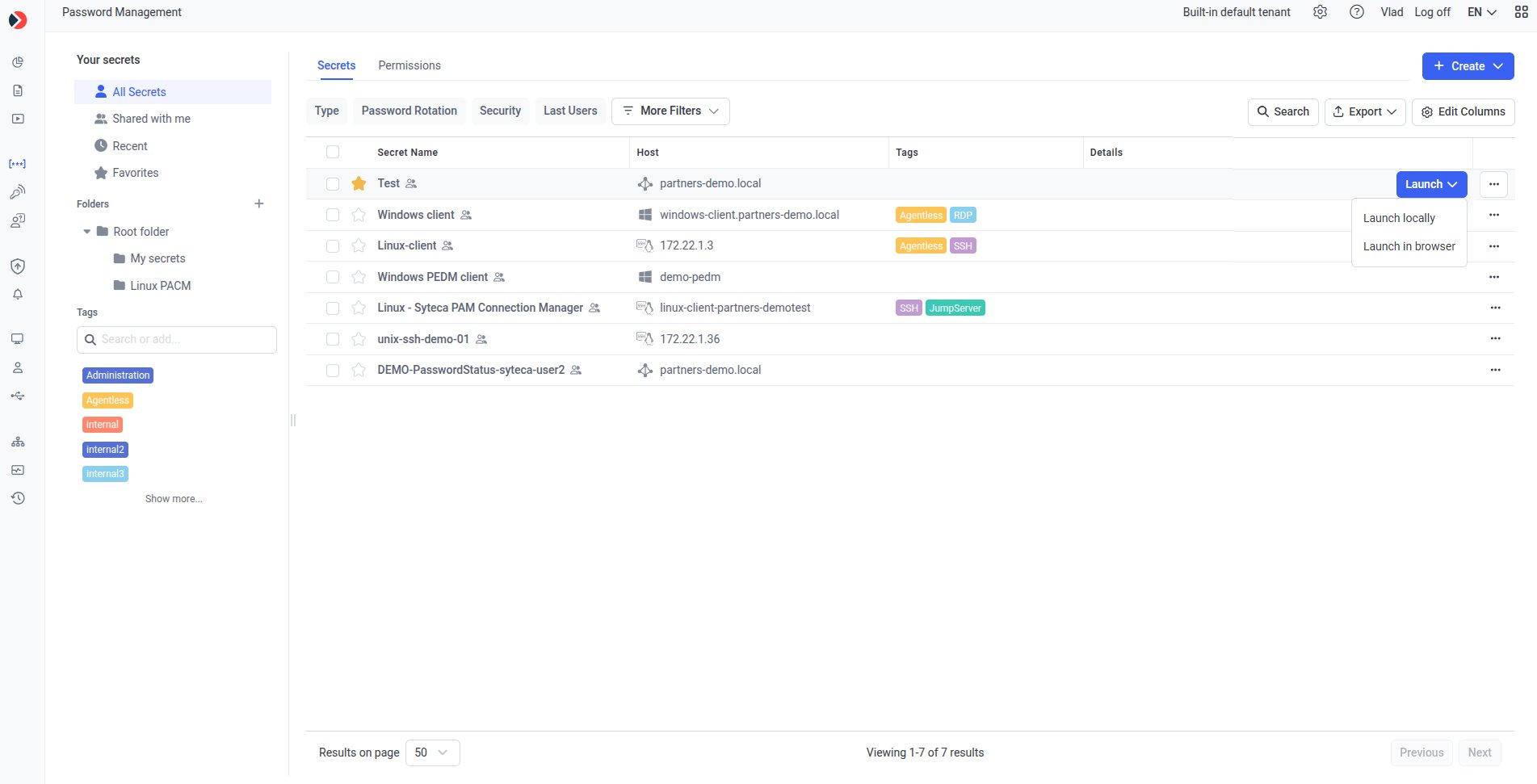
Launch options when a secret supports more than one launch type.
Once you click Save, your changes apply to the secret immediately.
Related
Add a secret
Create and configure a new secret from scratch.
View and manage secrets
The grid, folders, and Tags this panel is opened from.
Delete a secret
Remove one or more secrets you no longer need.
Application Credentials Broker
Retrieve secrets from scripts and CI/CD using the Secret ID.