

Recorded privileged sessions through a PAM gateway
The Desktop Connection Manager is Syteca’s PAM jump server — a hardened Windows computer that brokers privileged connections to your servers, databases, and admin accounts with full session recording. Users sign in to the jump server, pick a secret from the Connection Manager, and connect to the target system using native tools (RDP, PuTTY, SSMS) — without ever seeing the credentials, and with every keystroke and screen captured for audit. This is the right tool when you need a strict, recorded, auditable flow for day-to-day administrators — the kind of access compliance frameworks (PCI DSS, SOC 2, HIPAA) expect to see fully logged. For lighter or agentless scenarios — contractors, BYOD, remote staff — pair it with the Web Connection Manager, which runs in the browser without an agent.Choose the Desktop Connection Manager when you need:
- Full keystroke and screen recording of privileged sessions for audit.
- Support for every secret type (Active Directory, Windows, Linux SSH/Telnet, MS SQL, Web).
- A controlled gateway through which all privileged access must flow.
- Secondary user authentication so a shared admin account is always traceable to an individual.
PAM seat licenses must be assigned to users before they can use PAM, including the Desktop Connection Manager.
The Desktop Connection Manager requires .NET Framework 4.8 on the Client computer.
Before you start
- You sign in with the Client Configuration Management permission for Clients.
- The Windows Client you’ll use as the gateway is already connected to the Management Tool.
A jump server is only needed if two or more concurrent sessions are required on the Client computer running the Desktop Connection Manager. A Windows Server operating system is recommended for it.
Configure the Client computer
1
Open the Client
Sign in to the Management Tool, click Clients, find the Windows Client to use as the gateway, and click its name in the Client Name column.
2
Enable the Connection Manager
On the Properties tab, scroll to Client Mode and select:
- Enable the Syteca PAM Connection Manager — turns on the Desktop Connection Manager.
- Replace Windows Shell with the Syteca PAM Connection Manager (optional) — shows users only the Connection Manager window, not the Client desktop.
With a custom Windows shell, the Connection Manager shortcut may not appear on the desktop. Find it in
C:\Users\Public\Desktop.3
Enable secondary authentication
Select the Authentication Options tab, scroll to Two-Factor and Secondary Authentication, and select Enable secondary user authentication on login so users can access secrets.
Secondary user authentication is not required for Active Directory users.
4
Finish
Click Finish. The Client is now configured, and users can connect to accounts using the Desktop Connection Manager.
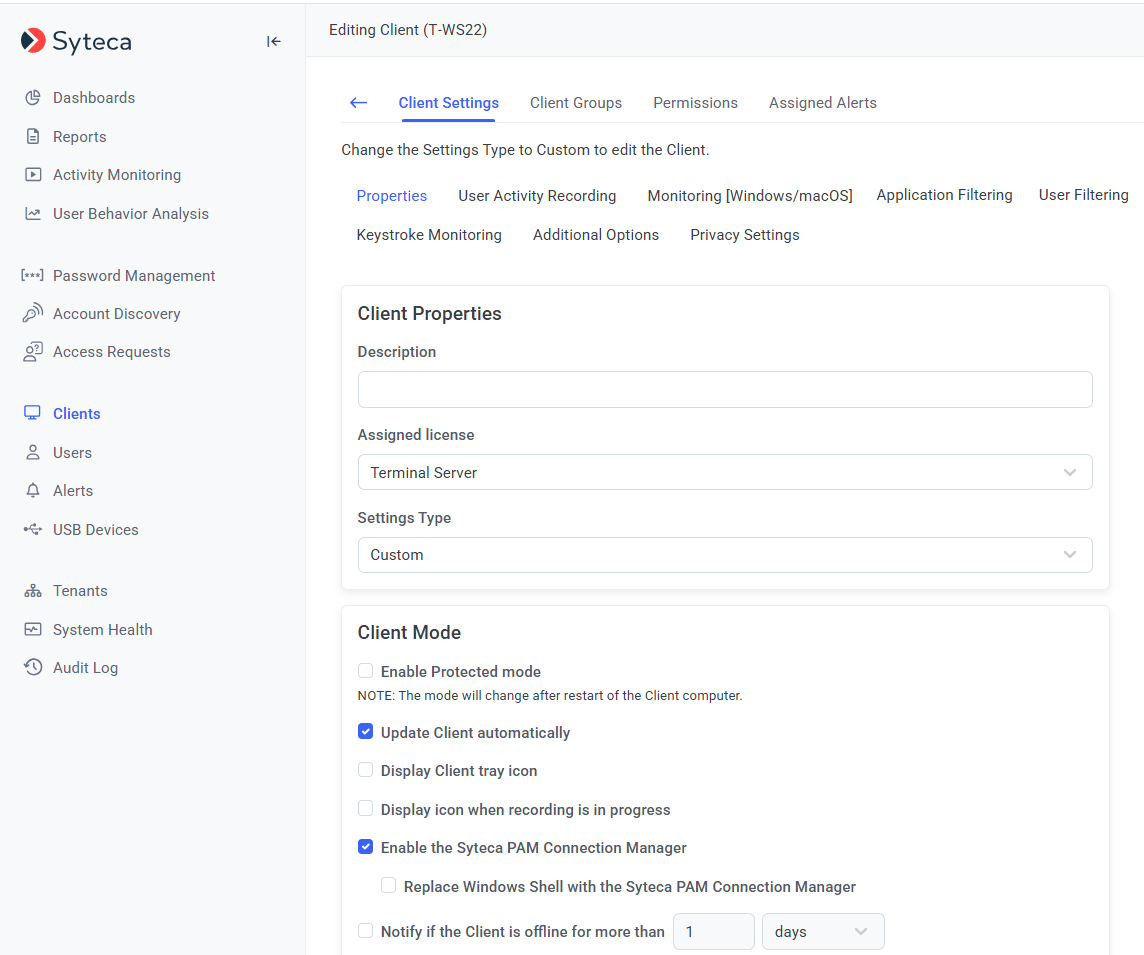
Enabling the PAM Connection Manager in the Client Mode section.
Related
Web Connection Manager
Connect from the Management Tool without a jump server.
Connect using a secret
Step-by-step connection for each secret type.
Set up Password Management
The full PAM configuration order.
Add a secret
Create a secret to use through the gateway.