

This task requires both the License Management and User Management administrative permissions.
See the licensing overview for how PAM seat licenses fit alongside endpoint licenses, and Manage the serial key for how many seat licenses your serial key includes.
Assign or unassign PAM seat licenses
1
Open Users
Sign in to the Management Tool with the required permissions, then click Users in the left navigation.
2
Assign or unassign per user
On the Users page, in the PAM column, move the toggle for a user right to assign a license, or left to unassign.
To assign PAM seat licenses to every user in a user group at once, use the toggle in the PAM column header. Individual user toggles still control each user’s license afterward — you can use the header toggle to assign in bulk and then unassign specific users.
3
Save
Click Save in the floating bar at the bottom of the page.
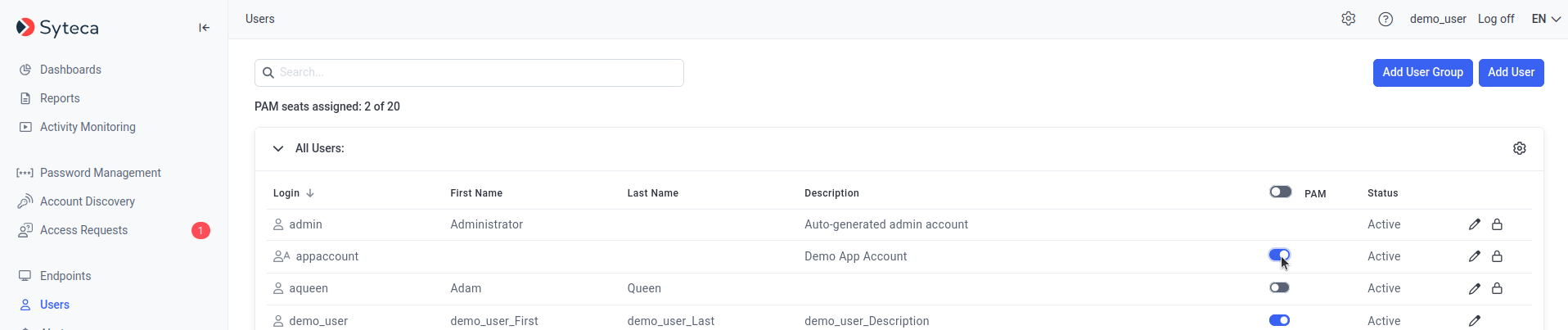
Assigning PAM seat licenses on the Users page using the PAM column toggles.
Restrictions and exceptions
Related
Licensing overview
Serial key types, contents, and the Update & Support period.
Assign endpoint licenses
Manual and automatic endpoint license assignment for Clients.
Privileged Access Management
What PAM seat licenses unlock.
Account Discovery
The other PAM feature requiring a seat license.