

Requires the administrative Database Management permission. Identical for the built-in default tenant’s admin and for tenant admins in Multi-Tenant mode.
1
Open Database Management
Click Configuration, then select the Database Management tab.
Database Settings
A read-only summary of the active database connection: Type (MS SQL Server or PostgreSQL), Database version, Database name, and User name.Archive Parameters
Add an archived database and configure Archive & Cleanup parameters for your database type.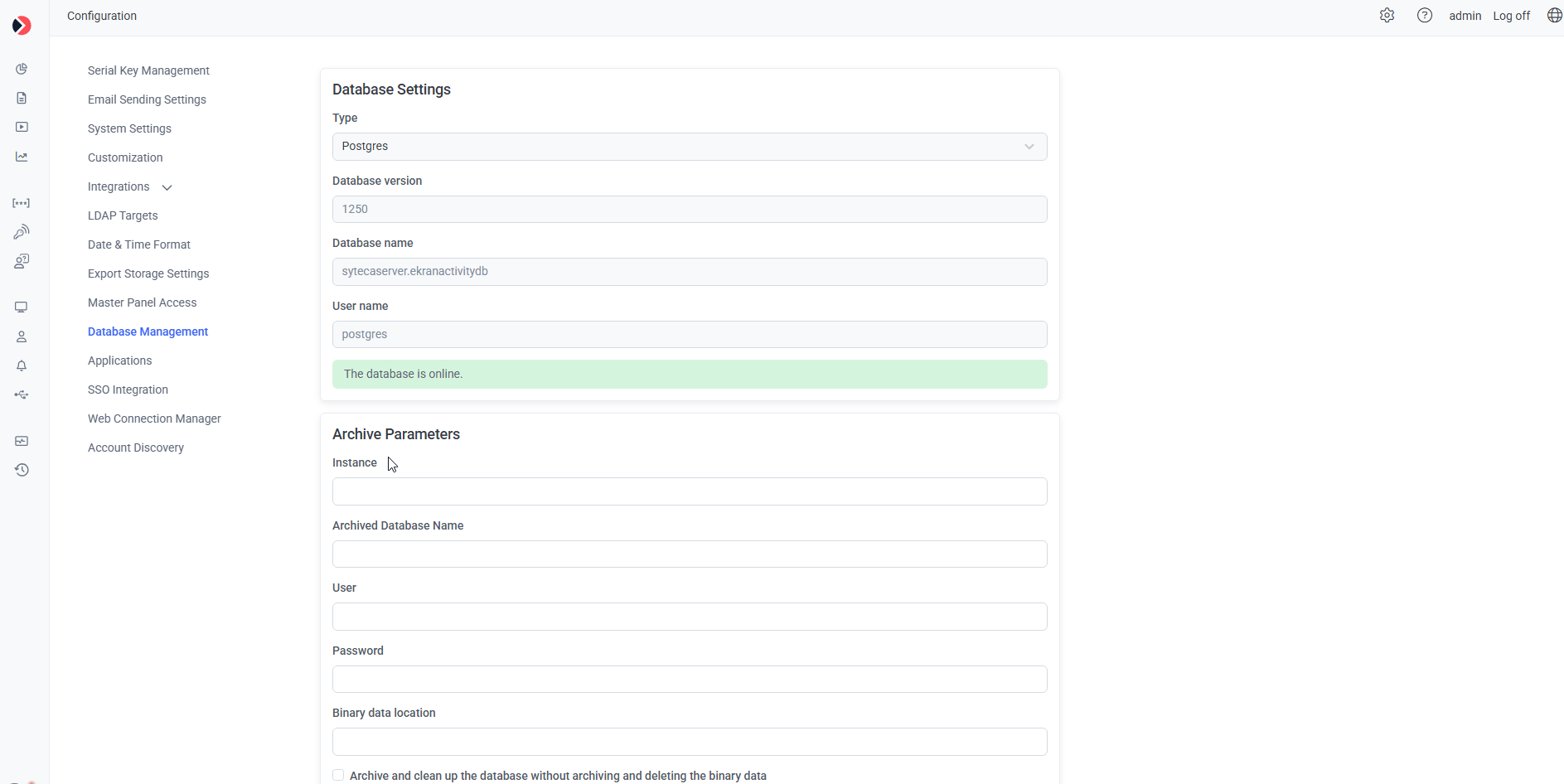
The Database Management tab, showing the Database Settings summary above Archive Parameters.
Buttons available at any time
- Test Database Connection — confirms whether the Application Server currently has an active connection to the archived database (and its binary storage location, if configured), and reports the result in a pop-up.
- Shrink Transaction Log (MS SQL Server only) — see Shrink the MS SQL database transaction log for what this does and its limitations.
- Update Statistics (MS SQL Server only) — rebuilds database indexes for faster query performance. For a more thorough, scheduled approach to index maintenance, see MS SQL index maintenance.
- Save — applies and saves changes made on this tab.
Related
Database management
Archive, cleanup, and validation settings in full detail.
MS SQL index maintenance
Scheduled index rebuilding beyond the one-click Update Statistics button.
Database parameters
Change the underlying database connection itself.