

Cryptographic authentication for the people who run your security platform
Password-based sign-in is the weakest link in any administrator workflow - phished, sprayed, reused, leaked. For a PAM and User Activity Monitoring platform, where the administrator can see and modify everything, password-only access is a meaningful risk. Most security teams already know this and respond in one of two ways: layer 2FA on top of passwords (better, but TOTP secrets can still be phished in real time), or accept the residual risk and hope. Syteca smart card authentication is the third option - replace password sign-in with a physical smart card holding a domain-issued client certificate. Without the card, the Management Tool refuses to authenticate at the IIS layer, before sign-in even reaches the Syteca application. Phishing a smart card requires possessing the physical hardware and knowing the PIN.Use smart card access when you need to:
- Meet PIV / CAC / FIPS 201 requirements for U.S. federal, defense, or contractor environments.
- Enforce hardware-token authentication for administrators of a privileged-access platform.
- Eliminate password-based sign-in to your monitoring and PAM consoles entirely, leaving no credential to phish.
- Satisfy compliance frameworks (NIST 800-53 IA-2, ISO 27001 A.9.4) that require multi-factor for privileged systems.
- Standardize on the smart cards your organization already issues for desktop login.
Prerequisites
The following are required before configuring smart card access:- A Domain Controller with Active Directory.
- A Certification Authority to issue Client certificates.
- Smart cards with enrolled Client certificates from that Certification Authority - one per administrator who will sign in.
- The Syteca Management Tool installed on a Windows server that is a member of the domain.
- Set up the Client Certificate Mapping Authentication role (turn on the IIS feature).
- Configure Client Certificate Mapping Authentication (enable it on the Management Tool site).
1. Set up the Client Certificate Mapping Authentication role
This IIS feature handles the certificate validation. The setup steps depend on your Windows OS - pick the matching tab.- Windows 10 / 8 / 7
- Windows Server 2012 / 2016
1
Open Programs and Features
Open Windows Control Panel → Programs and Features, then click Turn Windows features on or off.
2
Find and select the role
In the Windows Features tree, expand:Internet Information Services → World Wide Web Services → Securityand select the Client Certificate Mapping Authentication checkbox.
3
Apply
Click OK, then Close when the change completes.
2. Configure Client Certificate Mapping Authentication
With the role installed, enable it on the Management Tool site and require SSL.1
Open IIS Manager
Open IIS Manager using the route for your OS:
- Windows Server 2012 / 2016 - Taskbar Server Manager → Tools → Internet Information Services (IIS) Manager.
- Windows 10 - Windows+X → Control Panel → Administrative Tools → Internet Information Services (IIS) Manager.
- Windows 7 - Start → Control Panel → Administrative Tools → Internet Information Services (IIS) Manager.
2
Open Authentication for the server
In the Connections pane, click the server name. In the server’s Home pane, double-click Authentication.
3
Enable AD Client Certificate Authentication
On the Authentication page, right-click Active Directory Client Certificate Authentication and select Enable.
4
Disable any other authentication types
If any other authentication types are enabled (Anonymous, Windows, Forms, etc.), right-click each one and select Disable. Smart card authentication should be the only enabled method.
5
Open SSL Settings for the Management Tool site
In the Connections pane, expand Sites → Default Web Site, then click the Management Tool website name (default: Syteca). In the Home pane, scroll to the IIS section and double-click SSL Settings.
6
Require SSL with a client certificate
On the SSL Settings page:
- Select the Require SSL checkbox.
- In the Client certificates section, select the Require option.
Sign in using a smart card
The Management Tool sign-in screen with the smart card option enabled - users select a certificate from their smart card instead of entering a password.
1
Insert the smart card
Insert the smart card into the computer where you’re signing in.
2
Open the Management Tool URL
In your browser, go to
https://<computer-name-or-ip>/<URL-folder> - for example, https://john-pc/Syteca.3
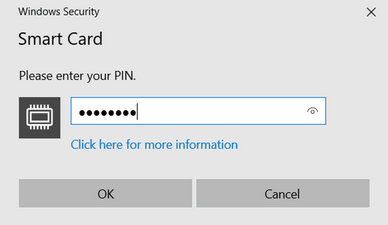
Enter the smart card PIN
In the Windows Security window, enter the smart card PIN, then click OK.
4
Sign in to the Management Tool
The Management Tool sign-in page opens. Enter the credentials of an existing user - internal or Active Directory - as on a normal sign-in.
Related
Two-factor authentication
TOTP-based 2FA - can be combined with smart cards or used standalone.
Keycloak SSO integration
Single Sign-On - an alternative authentication strategy.
Management Tool basics
The standard sign-in flow that smart cards augment.
Management Tool prerequisites
Pre-install setup, including the HTTPS certificate this builds on.