

Choose the activation method
Permissions required
The Management Tool user performing the activation must:- Belong to the built-in default tenant.
- Hold the administrative Tenant Management and System Configuration permission.
Online activation
Use this procedure when the Application Server computer has Internet access.Open the Serial Key Management tab
1
Verify Internet connectivity on the Application Server
Confirm that the Application Server computer has an active Internet connection. If not, use the offline procedure below instead.
2
Log in to the Management Tool
Log in as a user of the built-in default tenant who holds the administrative Tenant Management and System Configuration permission.
3
Open Configuration and Serial Key Management
Click the Configuration button at the top of the Management Tool interface. On the Configuration page, select the Serial Key Management tab, then open the Serial Key sub-tab.
Activate a new key or update an existing one
On the Serial Key sub-tab, choose one of the two actions. To activate a new serial key:- Click Activate Product in the top right of the page.
- Select Activate Product Online from the menu.
- In the Serial Key Activation popup that opens, enter the serial key.
- Click Activate.
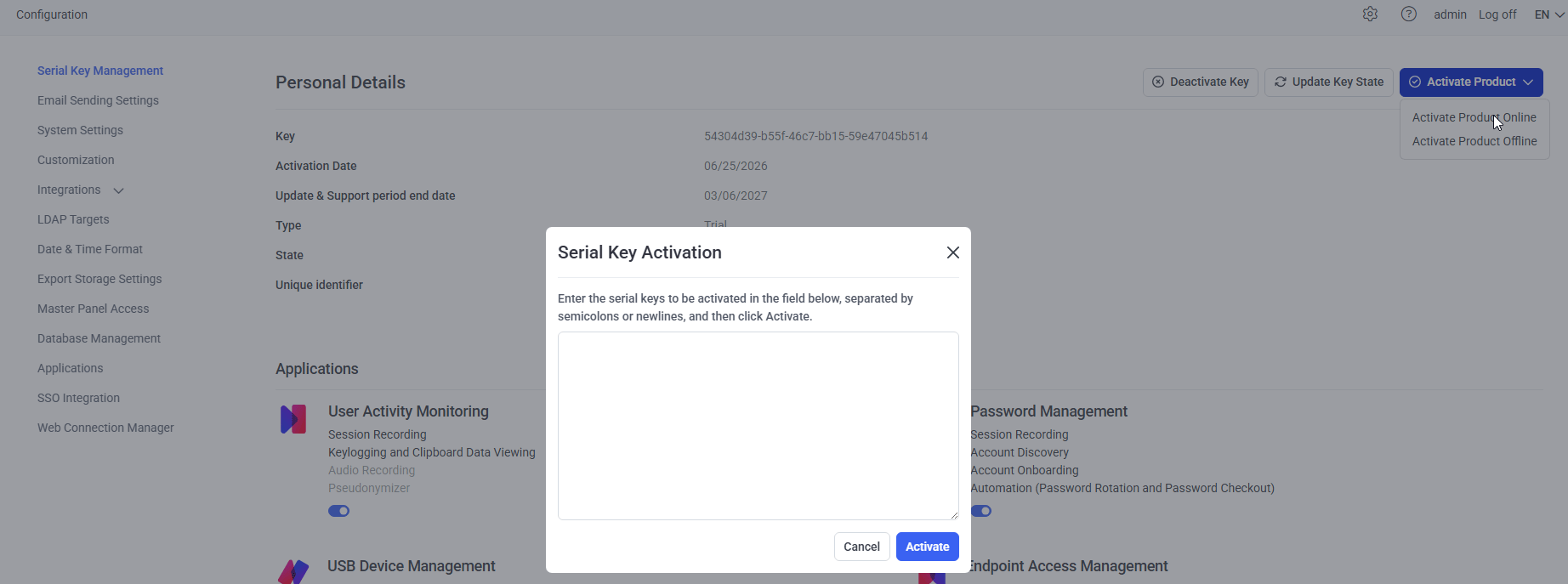
Serial Key Activation popup. Enter the serial key and click Activate.
- Click Update Key State in the top right of the page.
Whenever the Syteca vendor updates an existing serial key (for example, to extend the Update and Support period or add more licenses), click Update Key State in the Management Tool for the changes to take effect. Nothing changes in the deployment until this button is clicked.
Verify the serial key details
After activation or update, the serial key is displayed on the Serial Key Management tab with the number of licenses available, the Update and Support period end date, and other license attributes.Offline activation
Use this procedure when the Application Server computer does not have Internet access. The activation is done on the Syteca website, then the result is applied in the Management Tool offline. The full step-by-step instructions live on the Syteca website:Syteca offline activation instructions
Complete offline activation walkthrough on the Syteca website. Includes the download-and-upload cycle between the Management Tool and the Syteca activation server, and how to import the activation response file back into the Management Tool.
The offline activation procedure requires access to another computer with Internet access, since the Application Server computer itself is not connected. Plan the workflow accordingly, and have both computers available at the time of activation.
Troubleshooting
The Configuration tab or Serial Key Management sub-tab is missing
The logged-in user does not belong to the built-in default tenant, or does not hold the administrative Tenant Management and System Configuration permission. See Permissions required above, then log in as a user who meets both conditions.Activate Product Online fails
Check the following in order:- The Application Server computer has current Internet connectivity, including DNS resolution of the Syteca activation servers.
- Corporate firewall or proxy rules allow outbound HTTPS from the Application Server computer to the Syteca activation endpoint.
- The entered serial key matches the one provided by the Syteca vendor exactly, with no leading or trailing whitespace.
Update Key State does not reflect vendor-side changes
Confirm with the Syteca vendor that the key change has actually been applied on their side. Update Key State fetches the current state; if the vendor has not yet applied the change, the button does not report an error but also does not change anything.Related
Licensing overview
How Syteca licensing works, license types, and where each license type applies.
Manage the serial key
Serial key management operations after activation, including replacing and removing keys.
Assign endpoint licenses to Clients
Distribute the endpoint licenses covered by the serial key to specific Clients.
Assign PAM seat licenses
Distribute PAM seat licenses to users.