

For 2FA to authenticate, the system time and time zone on the Application Server and the user’s device must be synchronized.
1. Enable 2FA on Client computers
Required for all Windows and Linux Clients.1
Open the Client
Sign in with the Client Configuration Management permission, open the Clients page, and click the Client or Client group to edit it.
2
Enable the option
On the Authentication Options tab, under Two-Factor and Secondary Authentication, select Enable two-factor authentication.
3
Disable Mass 2FA (optional, Windows only)
Select Do not generate QR code automatically only if you want to turn off Mass 2FA, so Windows users must be added manually instead.
4
Finish
Click Finish.
With Mass 2FA on (the default for Windows), users are added to the Two-Factor Authentication grid automatically when they scan the QR code on their first login. Linux users always need manual setup (Step 2).
2. Configure 2FA for users manually
Required for Linux users. Also required for Windows users only if Mass 2FA is disabled.1
Open the 2FA tab
Sign in with the User Management permission, open the Access Requests page, select the Two-Factor Authentication tab, and click Add.
2
Select the user
In Add User, choose one:
- Active Directory user (Windows only) - select Domain and User login. (Individual users only, not groups.)
- Local computer user (Windows and Linux) - select Computer name and User login. (The only supported type on Linux.)
- Syteca user for secondary authentication (Windows only) - select User login.
3
Generate and share the QR code
Click Generate to create a QR code and key, then copy and send them to the user.
4
Save
Click Save. The user appears in the Two-Factor Authentication grid. On their next login (if 2FA is enabled on their Client) they scan the QR code and use the app for a TOTP thereafter.
3. How users log in with 2FA
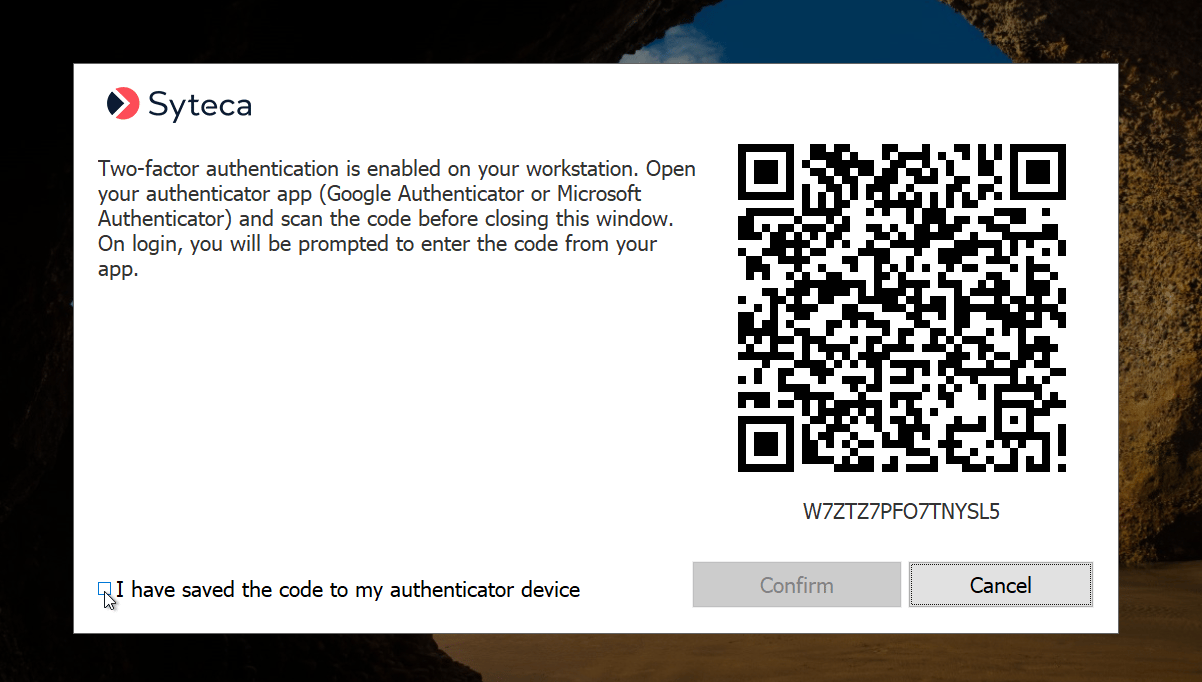
First-time 2FA setup - scan the QR code with an authenticator app, save the recovery code, and enter the 6-digit code to confirm.
- Manually configured users (usually Linux) get the QR code from whoever added them.
- Mass 2FA users (Windows) see the QR code on screen at first login; after selecting I have saved the code to my authenticator device and clicking Confirm, they’re added to the grid automatically.
If a user can’t generate a TOTP (for example, no access to their phone), a Management Tool user can read the current code for them from the grid (see below). The text beside the QR code is customizable on the Configuration page’s Customization tab.
4. Manage 2FA access
On the Two-Factor Authentication tab, a user with the Client Configuration Management and User Management permissions can:To stop requiring 2FA entirely for a user, also disable Enable two-factor authentication on their Client(s). If the Client is offline when you remove a user from the grid, deselect and then reselect that checkbox before they can use 2FA again.
Related
Manage access requests
The Access Requests page this tab lives on.
Endpoint Access Control
Require approval before users log in to Clients.