

Fix the “Running out of free space” warning
The System Health Transaction log adds a “Running out of free space” warning when the storage location used for Syteca data has less than an average of 2.5 GB of free space per Client. For example, with 10 Clients installed, the location needs more than 25 GB free to avoid this warning.Open the Application Server settings file
EkranServer.Settings.config (by default in C:\Program Files\Ekran System\Ekran System\Server).Add the warning threshold key
Save and restart the Application Server
Fix ERR_SSL_KEY_USAGE_INCOMPATIBLE in Chrome
Chrome version 119.0.6045.160 and later require the Digital Signature key usage parameter on any certificate used to serve the Management Tool over HTTPS. Without it, Chrome blocks the login page with this error.1. Create a trusted self-signed certificate
Open PowerShell
Generate the certificate
-DnsName: every name used to reach the server — hostname, domain name, and IP address.-KeyLength: 2048 is the minimum; some browsers warn below 4096.-CertStoreLocation: onlyLocalMachine\MyorCurrentUser\Myare valid.-NotAfter: the certificate’s expiration date.
2. Export the certificate
Open the Certificates snap-in
mmc, press Enter, and click Yes on the User Account Control prompt. Select File > Add/Remove Snap-in, choose Certificates, and click Add.Target the current user account
Export the certificate and private key
Set the export format
Set a password and save
3. Add the certificate to Trusted Root Certification Authorities
Install the exported certificate
Select the Local Machine store
Enter the private key password
Place it in Trusted Root Certification Authorities
4. Bind the certificate in IIS
Open IIS Manager
Import the certificate
Bind it to the default site
Close and restart Chrome
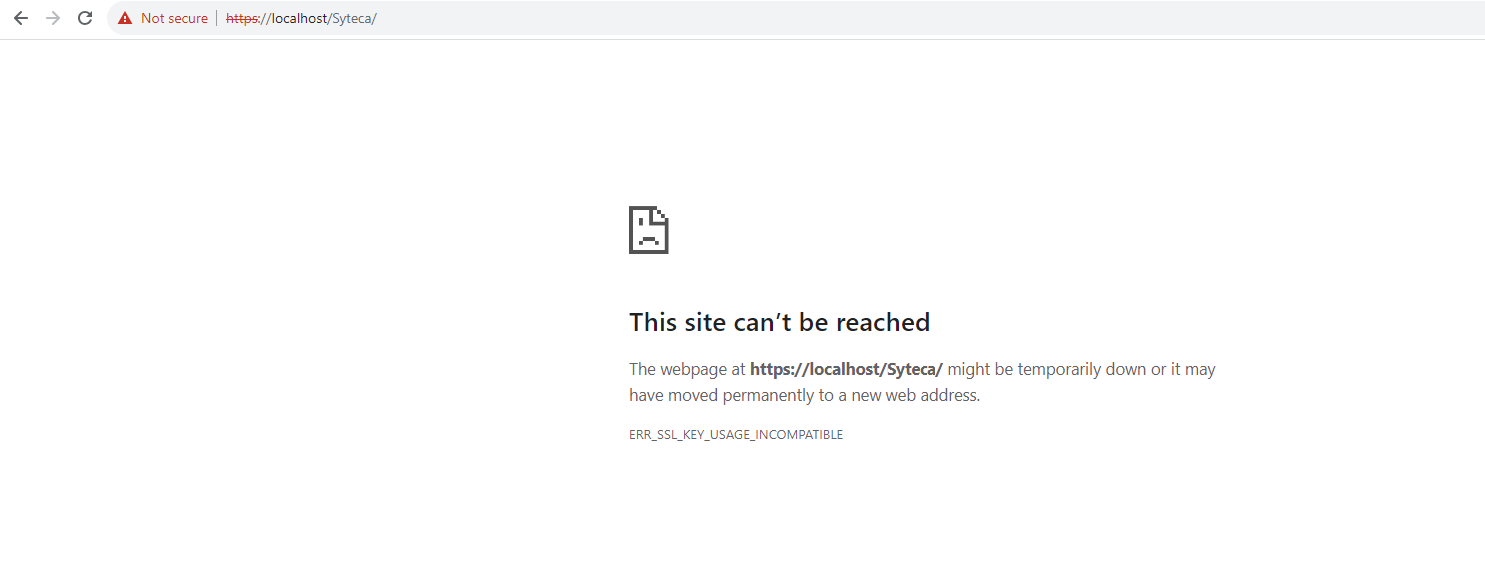
The ERR_SSL_KEY_USAGE_INCOMPATIBLE error in Chrome, caused by a certificate missing the Digital Signature key usage.
Log in using Internet Explorer 11 (legacy)
If a user can’t log in to the Management Tool using Internet Explorer 11, add the Management Tool address to IE’s trusted sites:Open Internet Options
Open Trusted Sites
Lower the security level
Disable Protected Mode
Add the site and close
System update issues
After a successful update, the EkranServer service cant be launched
After a successful update, the EkranServer service cant be launched
Program exists in the SystemDrive root, or a file named Common exists in ProgramFiles — Windows Service Control Manager expects SystemDrive\Program and Program Files\Common to be folders, and can’t locate them if they’re files instead. Rename or delete the conflicting file(s), then restart the system.No activated serial keys are displayed after reinstalling or updating the Application Server
No activated serial keys are displayed after reinstalling or updating the Application Server
- If the keys were activated online, they resynchronize automatically on the Application Server’s first startup after the update — an active internet connection is required at that moment.
- If the keys were activated offline, add them again manually in the Management Tool.
A message about Update & Support period expiry appears during an update
A message about Update & Support period expiry appears during an update
Clients are offline after updating from v6.5.xx to v6.60.xx, with "Srv.IO Pool Size" errors in the logs
Clients are offline after updating from v6.5.xx to v6.60.xx, with "Srv.IO Pool Size" errors in the logs
Stop the Application Server
Open the settings file
EkranServer.Settings.config (by default in C:\Program Files\Ekran System\Ekran System\Server).Remove the pool size overrides
Save and restart
Issues with monitored sessions
I'm logged in but can't see any captured data from a Windows Client
I'm logged in but can't see any captured data from a Windows Client
Some screen captures are blank
Some screen captures are blank
- If a user types continuously, stops, then switches windows within 3 seconds, the keystrokes attach to a blank capture.
- Minimizing an RDP connection window while accessing a Client also produces a blank capture.
A session contains no screen captures at all
A session contains no screen captures at all
Some screen captures look like two or more parts
Some screen captures look like two or more parts
The "Text Data" column is empty, even though text was copied, cut, or pasted
The "Text Data" column is empty, even though text was copied, cut, or pasted
- Confirm you have the Viewing Text Data permission for that Client.
- Confirm Enable clipboard monitoring is selected in the Client’s configuration.
Screen captures are sent more frequently than I defined
Screen captures are sent more frequently than I defined
A screen capture image is blurry
A screen capture image is blurry
A screen capture image is in grayscale
A screen capture image is in grayscale
The screen capture time doesn't match my computer's clock
The screen capture time doesn't match my computer's clock
The screen capture time doesn't match what the Client computer's clock should show
The screen capture time doesn't match what the Client computer's clock should show
Management Tool issues and error messages
"You do not have permission to add secrets (error code: UM001)"
"You do not have permission to add secrets (error code: UM001)"
HTTP 500 Internal Server error connecting to the Management Tool on Windows 7
HTTP 500 Internal Server error connecting to the Management Tool on Windows 7
Framework (not Framework64) path on a 32-bit machine.Client Groups tab shows an error with "Error404?message=PageNotFound" in the URL
Client Groups tab shows an error with "Error404?message=PageNotFound" in the URL
Open IIS Manager
Open Default Document
Enable it
Log in again
405 error code editing a secret, LDAP target, or deleting a report
405 error code editing a secret, LDAP target, or deleting a report