

Configure Group Policy for Kerberos-only authentication
To disable NTLM and enforce Kerberos authentication:Open Security Options
Set the NTLM restriction policies to Deny
Apply the policy
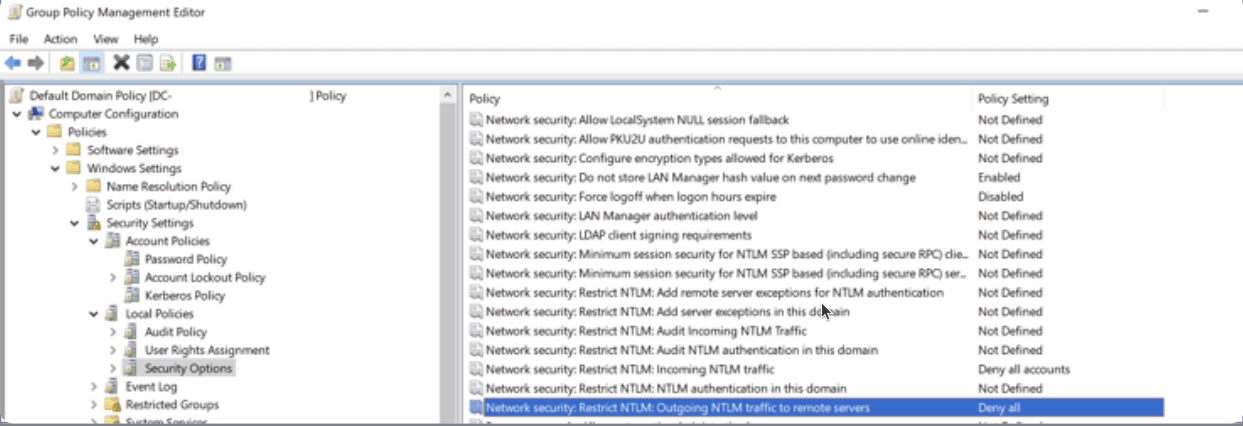
The Security Options list in Group Policy Management Editor.

Restrict NTLM: Incoming NTLM Traffic and Outgoing NTLM traffic to remote Servers, both set to deny.
Configure Syteca Server for Kerberos environments
To ensure Syteca Server operates correctly in an environment where Kerberos is the only available authentication method:Run the server under a Domain Admins account
Refresh the automatic LDAP target
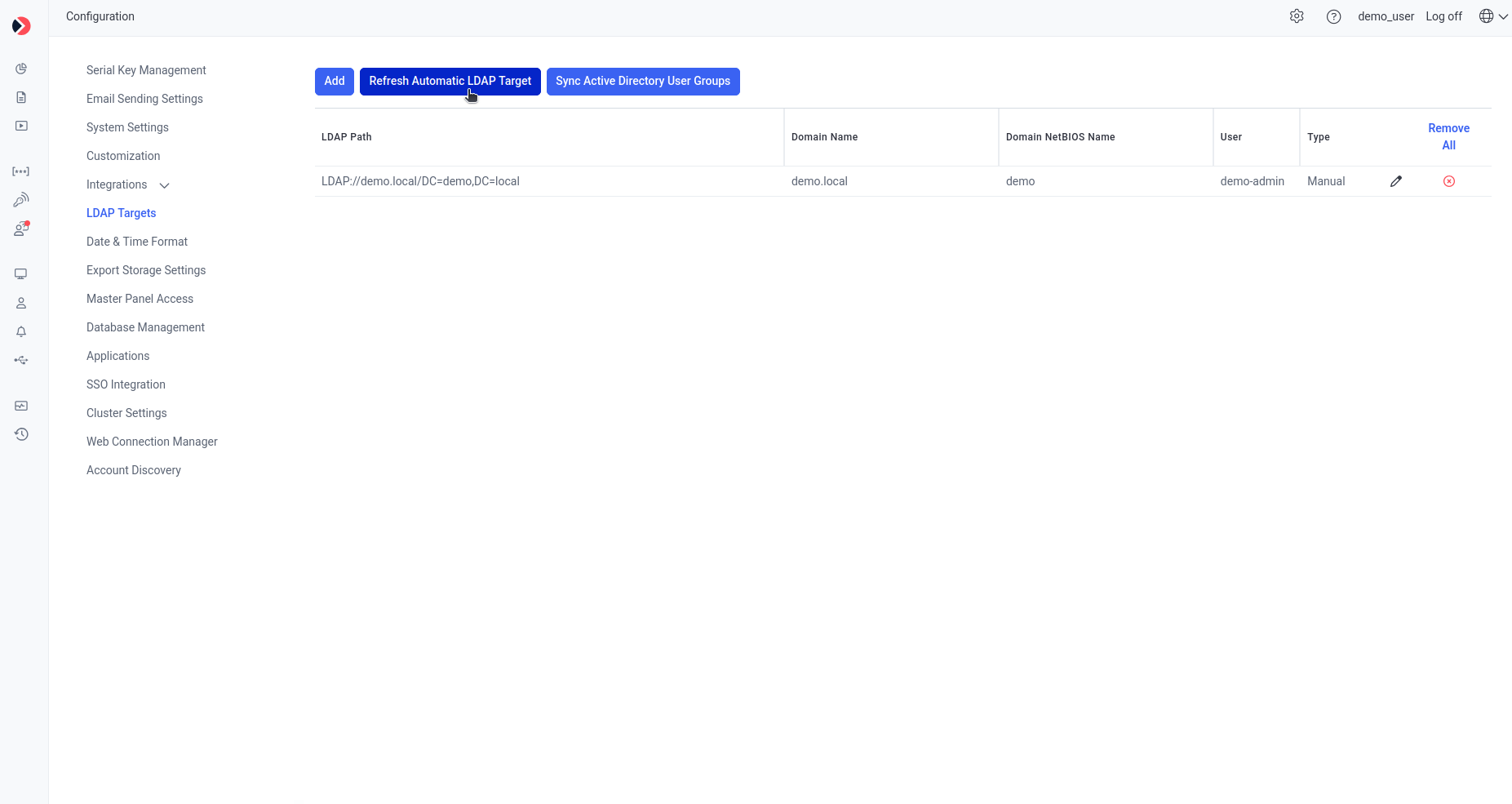
Refreshing the automatic LDAP target in the Management Tool.
Troubleshooting
RDP access issues after disabling NTLM
After disabling NTLM, the following RDP scenarios no longer work:- Logging in as a local user over RDP
- Connecting via IP address over RDP
- Connecting with Network Level Authentication (NLA)
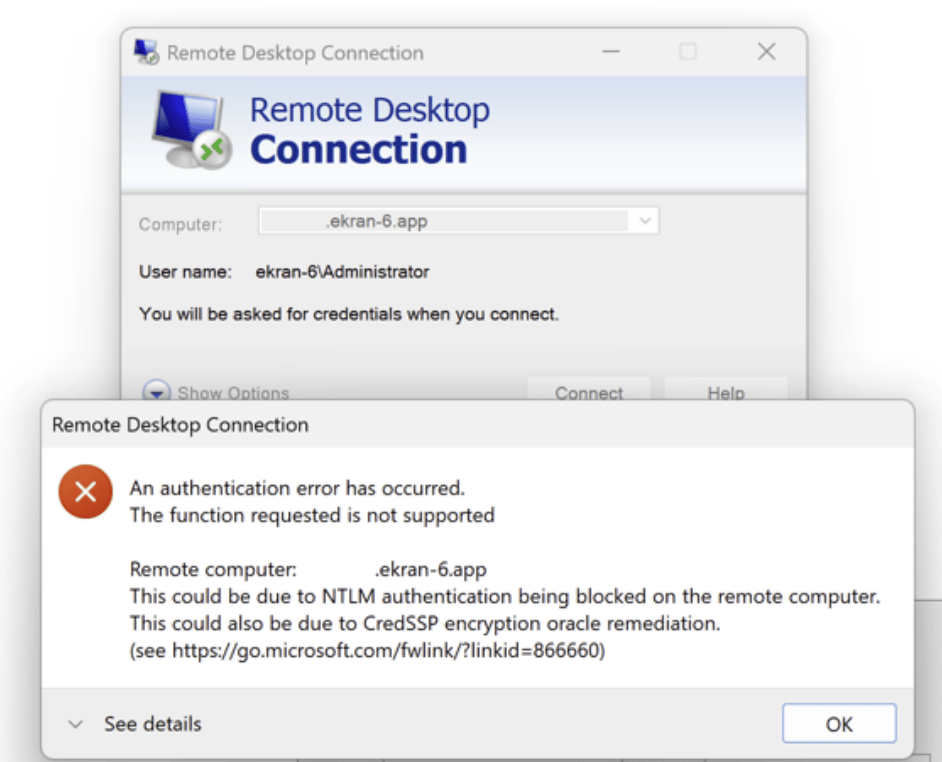
The authentication error shown when connecting via RDP in ways NTLM disabling breaks.
Add the Domain Controller and target machine to the hosts file (if the connecting PC isn't domain-joined)
hosts file.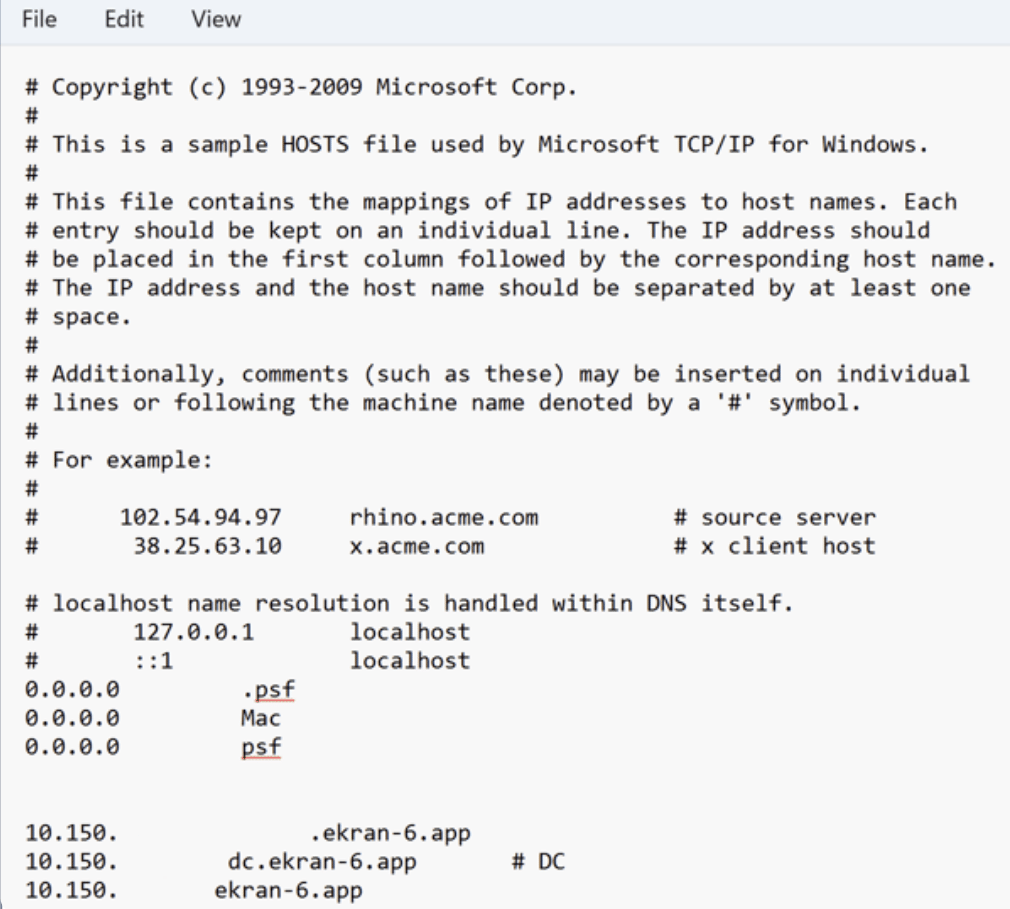
Domain Controller and target machine entries added to the hosts file.
Always log in as a domain user
Connect using the machine hostname, not its IP address
Password rotation errors
You may encounter the error “New password does not meet password policy” when rotating passwords for Secrets under an AD account. To resolve this, adjust the following settings in Group Policy Management > Policies > Windows Settings > Security Settings > Account Policies > Password Policy: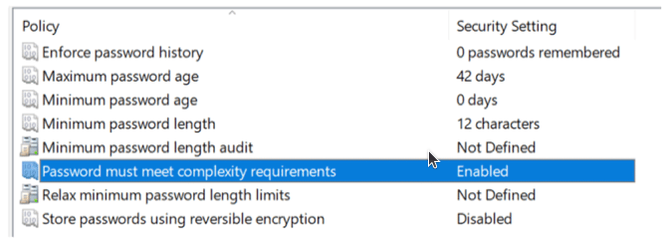
The Password Policy settings relevant to automated password rotation.
Manual LDAP target not working
Adding a manual LDAP target doesn’t work in Kerberos-only environments. To resolve this, use Refresh Automatic LDAP Target instead of adding an LDAP target manually - see Configure Syteca Server for Kerberos environments above.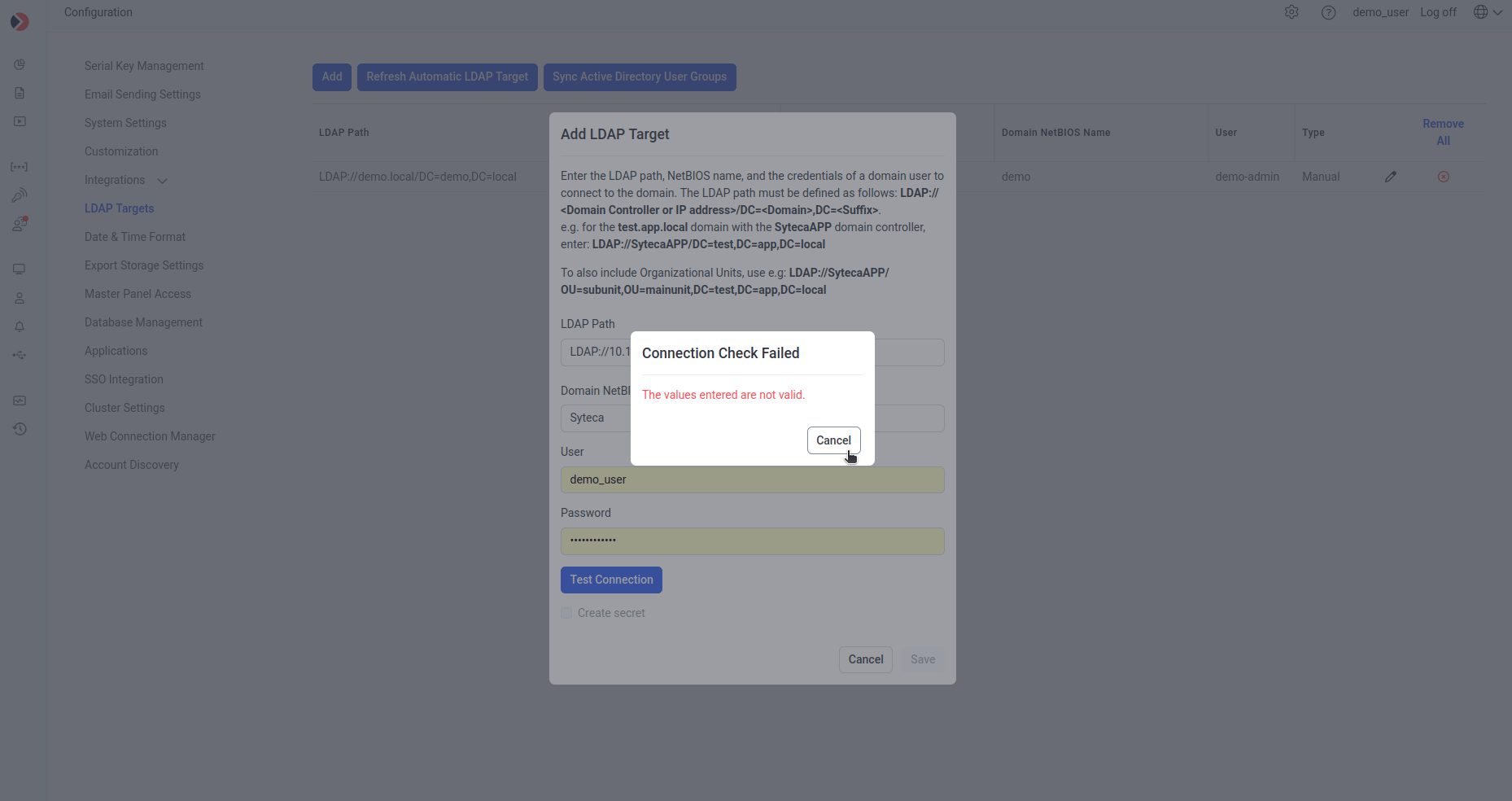
The Edit LDAP Target panel - manual entry isn't supported in Kerberos-only environments.