Remote Desktop Protocol (RDP) is a proprietary Microsoft protocol that lets a user connect to and control another computer remotely, sending keyboard and mouse input while receiving screen output. RDP is widely used for remote work and IT administration.
In this post, you’ll learn what is RDP, how it works, what risks it poses, and how to secure it.
How does Remote Desktop Protocol (RDP) work?
Remote Desktop Protocol operates on a client-host model. An RDP client on your local device connects to a remote RDP host or server. The RDP protocol then transmits input keystrokes and mouse movements from the client and displays output from the server over TCP/IP (and, in newer versions, UDP) on port 3389.
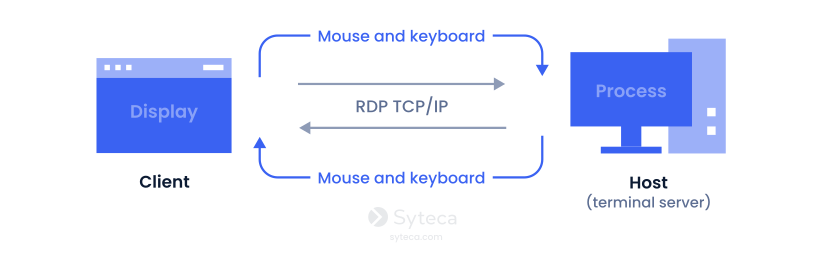
The traffic is typically encrypted to protect data in transit. Before a session opens, Network Level Authentication (NLA) verifies the user’s identity, reducing the risk of unauthorized access.
Remote Desktop Protocol supports multiple virtual channels, enabling features such as file transfer, printer redirection, clipboard sharing, and multi-monitor support within a single session. In Windows Server environments, Remote Desktop Services (RDS) can host multiple concurrent sessions, allowing several users to work on the same server simultaneously. This makes the RDP protocol well-suited for centralized application delivery and remote administration.
Common use cases for RDP
Organizations rely on Remote Desktop Protocol for a range of scenarios, such as remote and hybrid work, where users need full desktop access rather than just file or app access:
Employees can connect from home or branch offices to their office Windows desktops, accessing corporate apps and data without moving files to local devices.
IT administration and support
System administrators use RDP to troubleshoot servers, deploy software, configure settings, and manage users without being physically present.
Centralized application hosting
Applications run on a terminal server or virtual desktop infrastructure (VDI), and users access them via RDP sessions, reducing endpoint management overhead.
Third-party and vendor access
RDP provides direct desktop control for maintenance or integration tasks. Contractors or support vendors require temporary access to specific systems; RDP provides direct desktop control for maintenance or integration tasks.
Instructors or sales teams share a live Windows desktop environment to demonstrate software or run hands-on training sessions.
RDP security risks and vulnerabilities
Remote Desktop Protocol can be attacked because internet-exposed RDP instances are a leading entry point for ransomware.
Common RDP security vulnerabilities
Internet-facing RDP without a firewall or VPN
Weak/reused passwords and missing MFA
Unrestricted port 3389 exposure
Disabled Network Level Authentication
Excessive privileges enabling lateral movement
Attackers can exploit weak or reused credentials via brute-force and credential stuffing, scan for unrestricted port 3389, and leverage unpatched flaws such as BlueKeep (CVE-2019-0708), a critical pre-authentication remote code execution vulnerability in older Windows versions. Privileged RDP sessions may also enable lateral movement once an attacker gains initial access.
Successful RDP attacks cause operational downtime, lost revenue, recovery costs, regulatory penalties, and reputational damage. For SMEs and critical infrastructure, these consequences can be devastating, with clinical operations, production lines, or customer services halted for extended periods.
RDP security best practices
Applying RDP security best practices significantly reduces risk of external attacks. Implement these controls to protect your environment:
1. Never expose RDP to the public internet
Block direct inbound access to TCP port 3389 at the perimeter firewall. Require users to connect via a VPN, Remote Desktop Gateway, or a layer that verifies identity and device posture before allowing RDP sessions.
2. Enable NLA and enforce phishing-resistant MFA
Network Level Authentication verifies users before a session is established, reducing the attack surface for pre-authentication exploits. Combine NLA with multi-factor authentication (MFA), using authenticator apps, hardware keys, or biometrics on all RDP paths, including RD Gateway, to stop credential-based attacks.
3. Use strong passwords and restrict RDP access by role
Enforce complex passwords (minimum 16 characters, mixed case, numbers, symbols) and configure lockout policies to block accounts after repeated failed attempts. Limit RDP membership on a role-based basis and apply the principle of least privilege, so users can only access systems required for their role.
4. Patch RDP components promptly and disable RDP where not needed
Apply Windows security updates as soon as they are released, prioritizing RDP and Remote Desktop Services. Disable RDP on workstations and servers that do not require remote access in order to reduce the attack surface.
5. Log and monitor all RDP sessions for anomalous activity
Enable detailed RDP session monitoring and forward logs to a SIEM or centralized monitoring solution. Alert on unusual patterns such as off-hours logins, multiple authentication failures, and unauthorized software installation. Also, enable automated threat response and investigate quickly to detect brute-force attempts and malicious activity.
6. Harden session and transport settings
Require TLS 1.2 or higher for RDP connections, disable older or weak protocol versions, and enforce the highest available encryption level. Disable unnecessary redirection connections (clipboard, drives, printers, USB) unless explicitly required, and configure idle session timeouts to auto-disconnect inactive users.
7. Segment and restrict network access
Place RDP hosts in dedicated subnets, restrict RDP traffic to known admin jump boxes or bastion hosts, and use firewall rules or IP allowlists to limit which IPs can initiate RDP connections. Avoid RDP by raw IP address where possible and use managed gateways instead.
Syteca is a privileged access management (PAM) platform with built-in identity threat detection and response (ITDR) capabilities that can help protect your environment from insider and external attacks. Syteca hardens RDP-based remote access by vaulting privileged credentials, enforcing least privilege and just-in-time access. The platform also records every privileged and third-party RDP session for audit and threat detection, sends real-time alerts, initiates immediate response, and provides forensic-grade evidence for investigations and audits.
Want to try Syteca? Request access
to the online demo!
See why clients from 70+ countries already use Syteca.
FAQ
RDP stands for Remote Desktop Protocol. It is a Microsoft network protocol that allows users to connect to and control other computers over a network through a graphical interface. In practice, RDP creates an encrypted communication channel between your local device and the remote Windows PC or server, allowing you to work on the remote machine as if you were sitting in front of it.
An RDP session with weak credentials can be a high-risk entry point for attackers. However, Remote Desktop Protocol is secure when properly configured, with Network Level Authentication (NLA), multi-factor authentication (MFA), strong passwords, regular patching, and no direct internet exposure.