

Columns per Client OS
The columns shown in the grid depend on the OS the session was recorded from. Every OS has the Activity Time column; the rest varies:- Windows
- macOS
- Linux
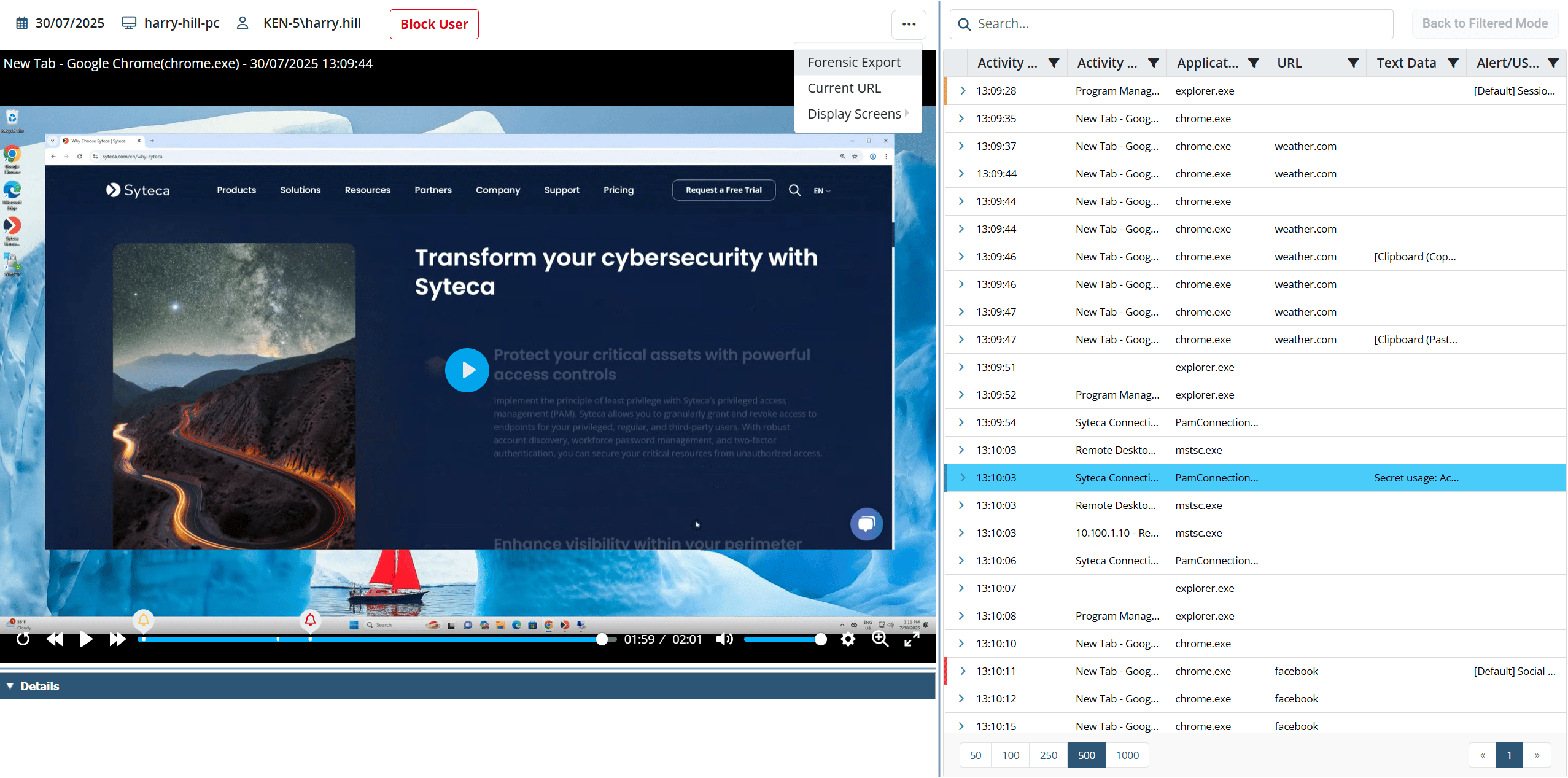
The Metadata grid showing recorded activity records with alert and USB risk-level bars.
Data is sorted by Activity Time by default. Drag column boundaries to resize columns; drag column headers to reorder them.
Navigate records with the keyboard
When the Session Viewer has focus, the keyboard can navigate between records in the grid:
The Previous/Next buttons in the Session Player do the same thing.
Switching between records actually means switching between screen captures. Since each record may contain multiple captures (and some may contain none), the keyboard arrows won’t always change the visible record — they always change the visible capture. Records without captures are skipped.
Search, filter, and sort inside a session
The search and filter functions narrow the records visible in the grid — useful for jumping straight to specific moments in a long session (“when did the user open this URL?”, “show only records with clipboard data”).Search
Enter a keyword in the Search box at the top of the Metadata grid. The grid dynamically filters as you type. The search covers these fields:- Activity Title
- Application Name
- Keystrokes
- Clipboard text data
- USB device info
- URL
- Linux commands
- Linux command parameters
- Linux function calls
For Linux remote SSH sessions, additional search options are available on the grid’s Search button — including Search in output for searching inside command output, and toggles to show function calls, only execution commands, or user input keystrokes. See Linux SSH and terminal sessions.
Filter by column
Click the Filter icon in any column header and select the values to keep. Multiple columns can be filtered simultaneously — apply filters one column at a time.Sort
Click a column header to sort by that column. Click again to reverse the sort direction. The sort arrow on the header indicates the current direction.If a column can’t be sorted, the sort arrow doesn’t appear when you click the header.
Synced vs Filtered Mode
The Session Player has two operating modes that determine whether the player and grid stay synchronized.
When you open a session, the player starts in Synced Mode. The first search, filter, or sort switches it to Filtered Mode. To return to Synced Mode (and clear all search/filter/sort), click the Back to Synced Mode button at the top right of the grid.
Related
Session Viewer overview
The three-pane layout, playback controls, magnifier, live mode, and bookmarking.
Per-OS playback details
What’s specific to Windows, macOS, and Linux session playback.
Sessions List
Find the session you want before opening it in the Viewer.
Alerts
The alert events that show as colored bars in the grid.