

Windows Firewall is configured automatically for the ports it can detect if it’s enabled during Application Server installation. Use this page to configure it manually, or to configure a different (non-Windows) firewall.
Ports reference
Open these ports depending on your deployment and configuration:Configure the firewall on current Windows versions
Applies to Windows 11, Windows 10, Windows 8.1, Windows 8, Windows 7, and Windows Server 2012. It isn’t necessary to disable the firewall on any of these.
Enable Remote Service Management (RPC)
1
Open Windows Firewall
Go to Control Panel > System and Security > Windows Firewall, then click Advanced settings.
2
Open the RPC inbound rule
In Windows Firewall with Advanced Security, click Inbound Rules, then double-click Remote Service Management (RPC).
3
Enable and allow the rule
On the General tab, select Enabled and choose Allow the connection under Action.
4
Set the network profile
On the Advanced tab, select the profile(s) matching the network used to connect remote computers to the server.
5
Apply
Click Apply, then OK, and close the Windows Firewall window.
Enable File and Printer Sharing
1
Open Windows Firewall
Go to Control Panel > System and Security > Windows Firewall, then click Allow an app or feature through Windows Firewall.
2
Change settings
Click Change settings.
3
Enable the feature
Select the File and Printer Sharing checkbox and click OK.
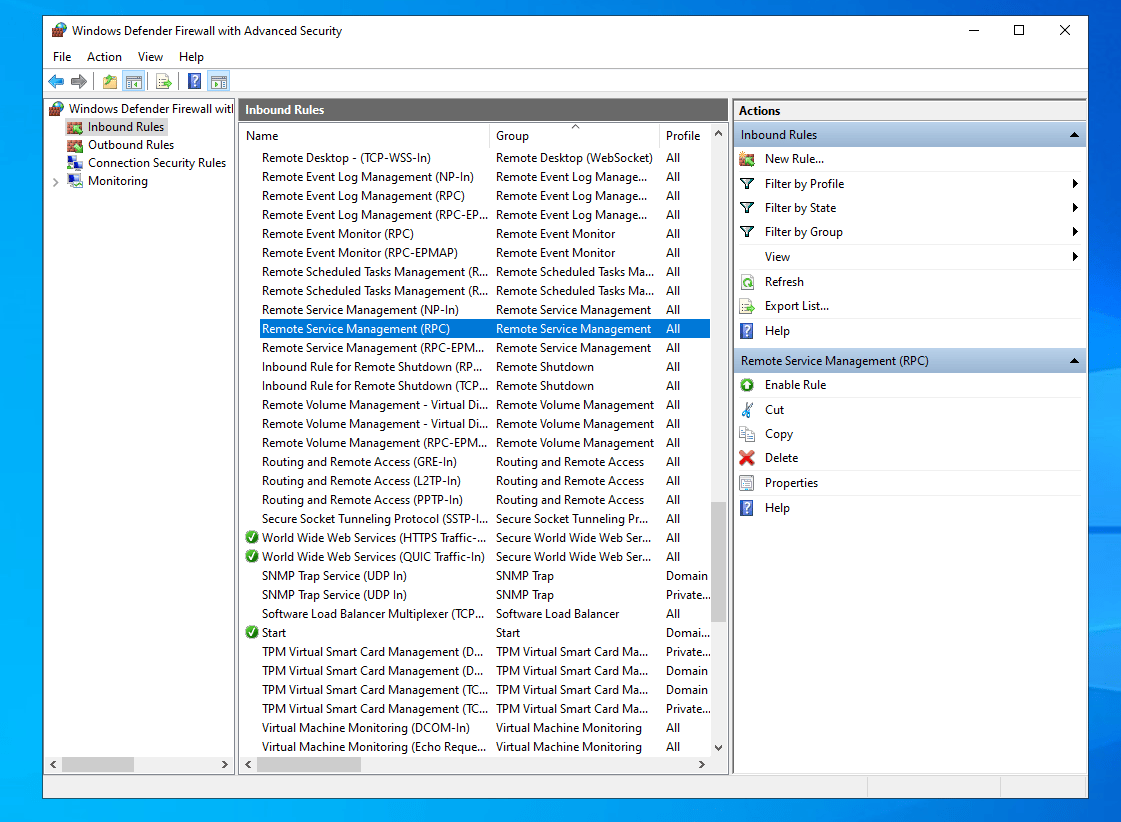
Enabling the Remote Service Management (RPC) inbound rule.
Legacy Windows versions
It isn’t necessary to disable the firewall on Windows Server 2003. To allow remote Client installation, enable File and Printer Sharing:1
Open Windows Firewall
Go to Start > Control Panel > Windows Firewall.
2
Open the Exceptions tab
Select the Exceptions tab.
3
Enable the feature
Select the File and Printer Sharing checkbox.
Related
Database requirements
Ports and versions for MS SQL Server and PostgreSQL.
Windows Clients
Windows Client installation and configuration.
Creating databases manually
Manual database setup for MS SQL Server and PostgreSQL.